CRM Chat Pro Documentation
Getting Started
Follow these steps to get CRM Chat Pro up and running.
Install the Module
Upload the CRM Chat Pro zip file via Setup > Modules > Install New Module. Complete the setup wizard with your license key and activate the module.
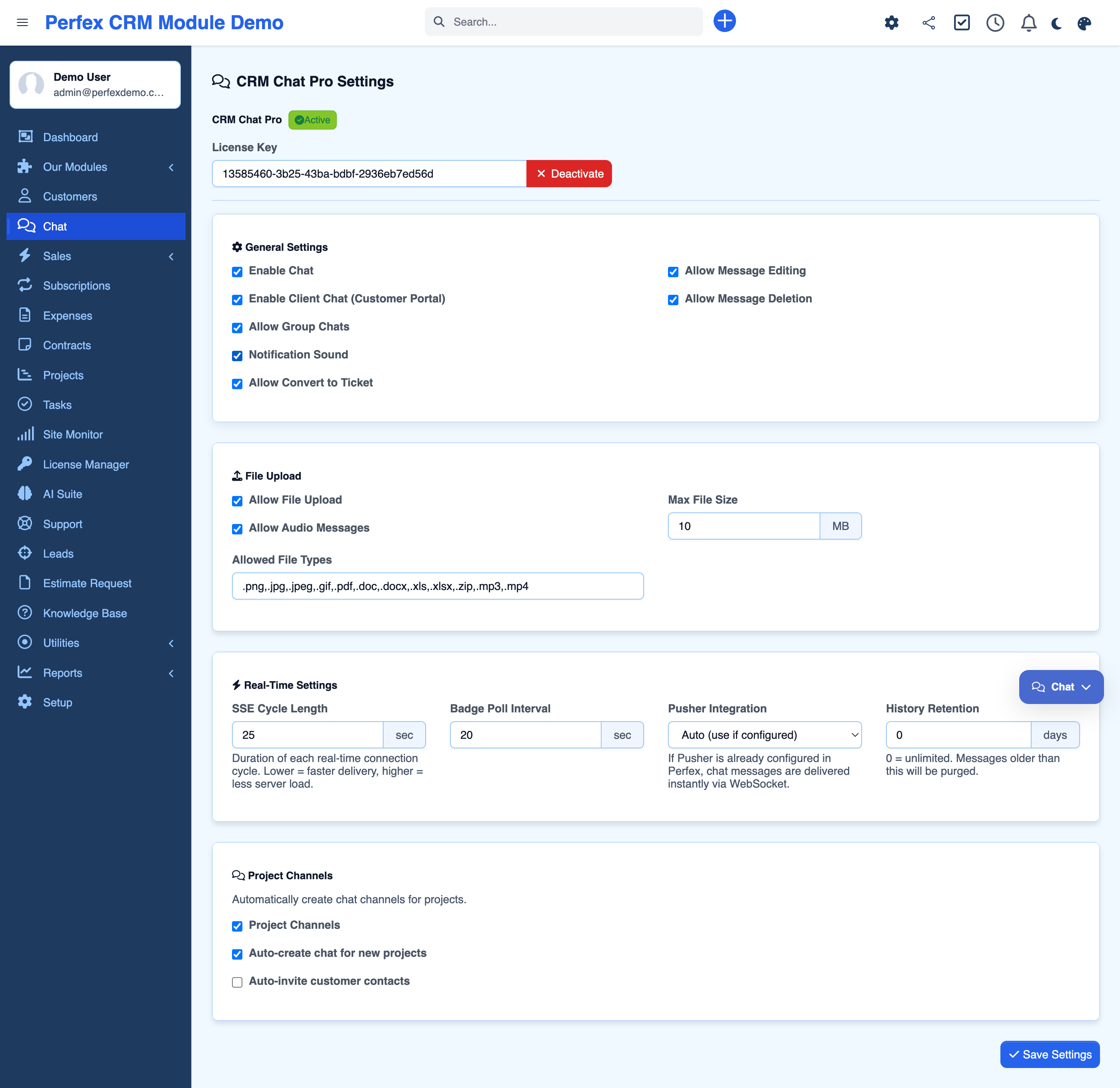
Configure Settings
Go to CRM Chat Pro Settings to enable client chat, project channels, file uploads, audio messages, real-time transport, and notification sounds.
Start Chatting
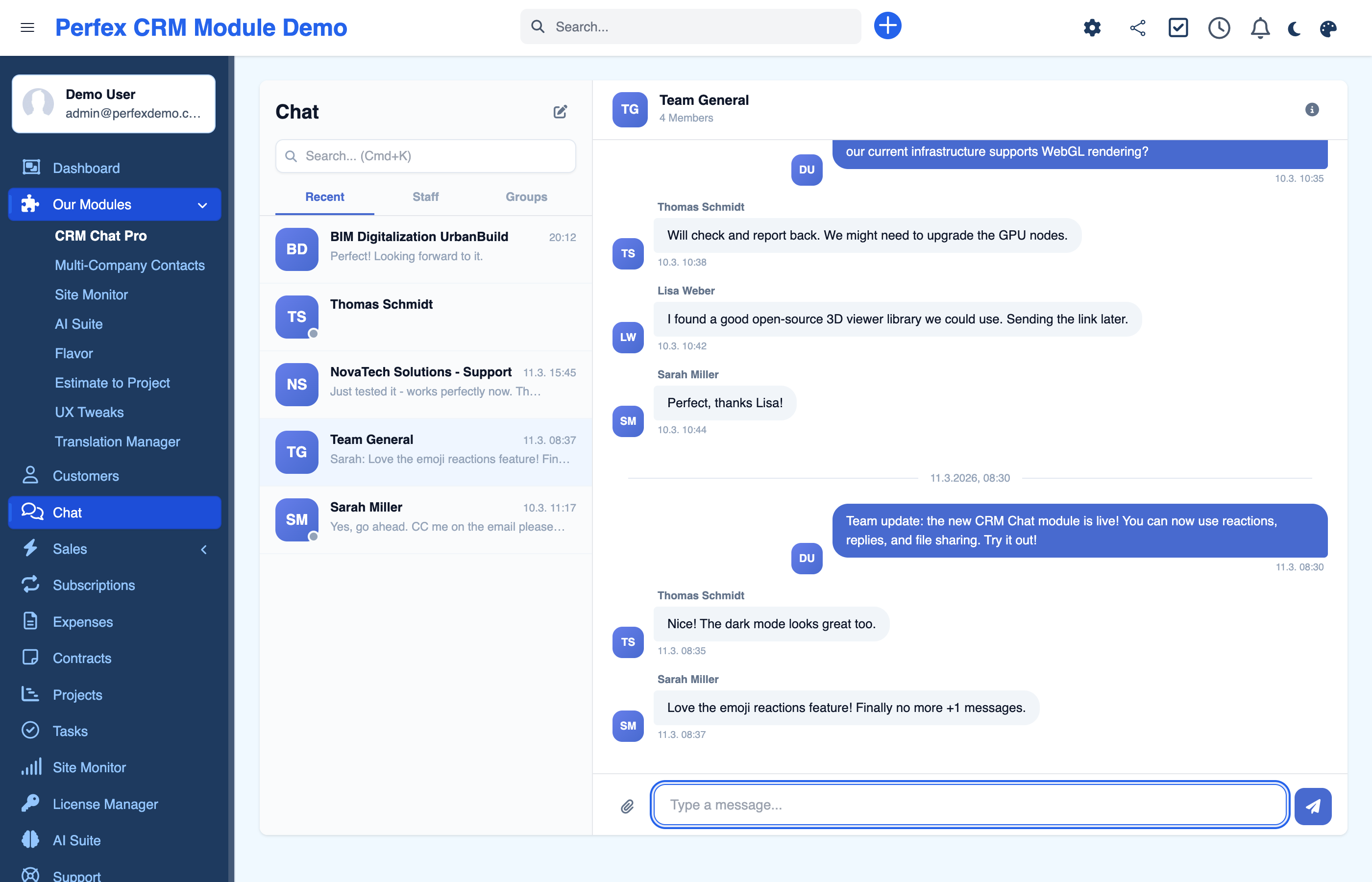
Open the Chat page from the main menu. Message staff directly, create group conversations, or open a project channel. Clients can chat from the customer portal.
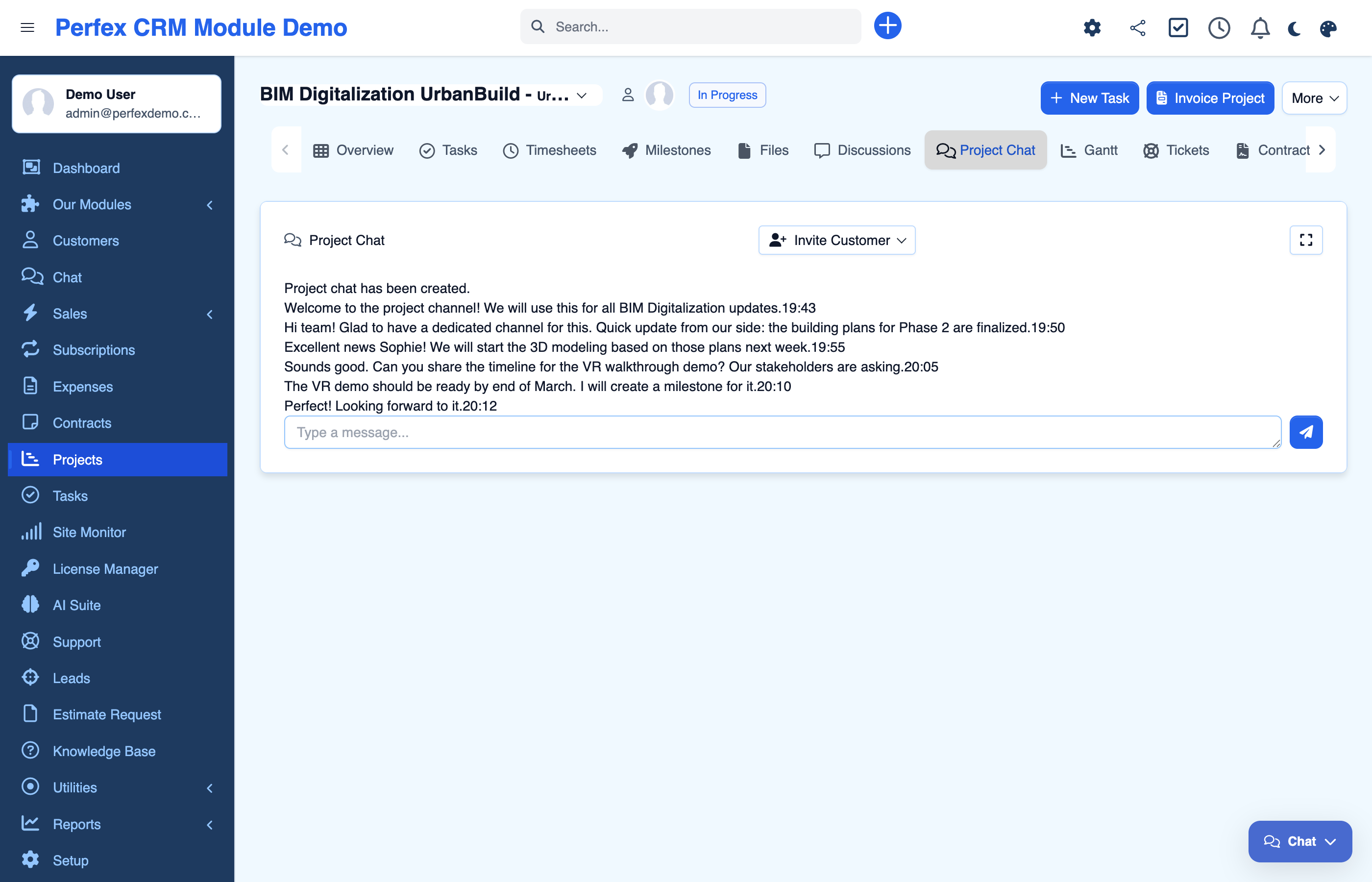
Project Channels
Each project gets a dedicated chat tab. Members sync automatically and clients can be invited to collaborate directly within the project view.
Download Diagnostics Report
If you need support, go to the module admin page and click the "Download Diagnostics" link. This generates a JSON file with system info, PHP version, installed modules, and recent errors (secrets are automatically redacted). Upload this file when creating a support ticket at custom-perfexcrm.com/support/ for faster troubleshooting.

Tips & Tricks
Get the most out of CRM Chat Pro with these tips.
Project channels for context
Every project automatically gets a chat channel. Team changes sync instantly. Invite clients to keep everyone in the loop without leaving the CRM.
Use Pusher for larger teams
If you have Pusher configured in Perfex CRM, CRM Chat automatically uses WebSockets for instant delivery. This reduces server load for teams with many concurrent users.
Floating widget for multitasking
The floating chat widget is available on every admin page. Use it to chat while working on tickets, projects, or invoices without switching pages.
Convert discussions to tickets
When a chat discussion leads to an action item, convert the messages to a support ticket with one click. Context is preserved automatically.
Reposition the widget
If the chat widget overlaps a button, drag it to a new position. The position is saved in your browser and stays across page reloads. To reset, clear the browser localStorage key or use the widget context menu.
Use diagnostics for faster support
When creating a support ticket, download and attach the diagnostics report from your module settings. It contains system info, PHP version, database details, and recent errors — all with secrets automatically redacted. This helps resolve your issue much faster.
Frequently Asked Questions
Does CRM Chat require external services?
No. CRM Chat is 100% self-hosted and works out of the box with Server-Sent Events (SSE). If you already have Pusher configured in Perfex CRM, it will automatically use WebSockets for even faster delivery.
How does real-time messaging work?
CRM Chat uses a 3-tier hybrid system: SSE as the primary transport with approximately 1-second latency, badge-polling as a fallback, and optional Pusher WebSocket support for instant delivery. No configuration needed — it works automatically.
Can clients chat from the customer portal?
Yes. Clients can chat with your team directly from the Perfex CRM customer portal. They see project-specific conversations and can send messages, share files, and receive real-time updates — all within their portal view.
What are Project Channels?
Every project can have a dedicated chat channel. When you add or remove members from a project, the chat participants update automatically. You can also invite client contacts to join the project conversation.
Is it mobile-friendly?
Yes. CRM Chat is fully responsive from 390px viewport width, with touch-optimized controls and an app-like experience on mobile devices. It works seamlessly with the Flavor module for dark mode support.
What file types can be shared?
File types and maximum size are configurable in the admin settings. By default, it supports PNG, JPG, GIF, PDF, DOC, DOCX, XLS, XLSX, ZIP, MP3, and MP4 with a 10 MB limit.
Does it integrate with other Perfex CRM features?
Yes. Convert chat messages into support tickets, auto-sync project members, and use the existing Perfex staff and permission system with 6 granular permissions.
How many concurrent users are supported?
Each active SSE connection uses one PHP worker process. The number of concurrent chatters depends on your server configuration. For larger teams, enable Pusher to reduce server load significantly.
Is CRM Chat GDPR compliant?
Yes. All data stays on your server — no external API calls are made. Messages use soft-delete for audit trails, and you can configure automatic message cleanup after a specified number of days.
Can I move the chat widget?
Yes. The floating chat widget is fully draggable — just click and drag it to any position on the page. Your position is saved in the browser and persists across page reloads. This is useful when the widget overlaps important buttons like "Save Invoice".
Need More Help?
Contact our support team or visit the module page for more information.