Flavor Documentation
Getting Started
Follow these steps to get Flavor up and running.
Install Flavor
Upload the Flavor zip file via Setup > Modules > Install New Module. Activate the module after installation.
Choose a Preset
Go to Setup > Flavor. Browse the available presets and click "Apply" on the one you like. The changes take effect immediately.

Customize Colors
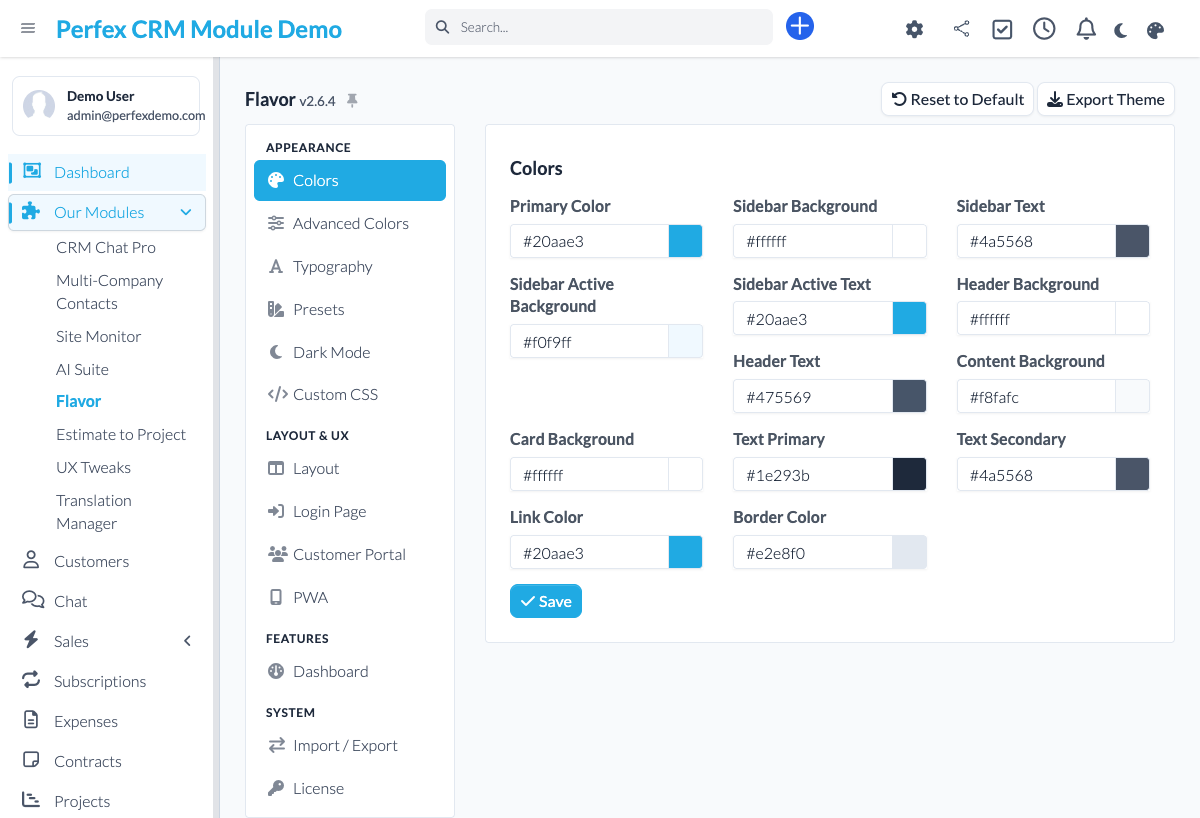
Click "Customize" to open the color engine. Adjust primary, secondary, sidebar, and header colors with the visual picker.
Enable Dark Mode
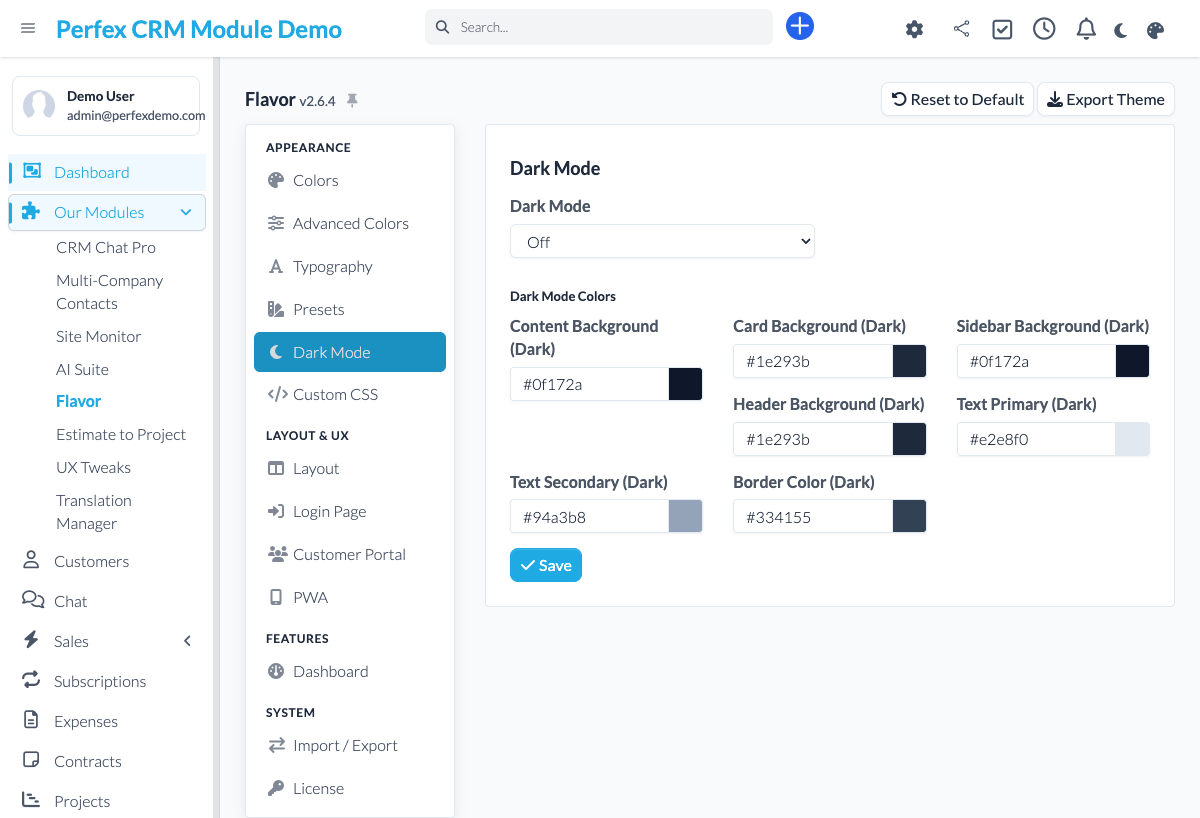
Toggle dark mode in Flavor settings. You can set it as default or let users switch between light and dark via a toggle in the admin header.
Download Diagnostics Report
If you need support, go to the module admin page and click the "Download Diagnostics" link. This generates a JSON file with system info, PHP version, installed modules, and recent errors (secrets are automatically redacted). Upload this file when creating a support ticket at custom-perfexcrm.com/support/ for faster troubleshooting.

Tips & Tricks
Get the most out of Flavor with these tips.
Start with a preset, then customize
Presets give you a solid foundation. Apply one first, then fine-tune individual colors. This is faster than building a theme from scratch.
Test on mobile
After applying a theme, check how it looks on mobile devices. The PWA feature works best when your color scheme has good contrast ratios.
Brand your login page
A custom login page makes a strong first impression. Use your company logo, brand colors, and a professional background image.
Use diagnostics for faster support
When creating a support ticket, download and attach the diagnostics report from your module settings. It contains system info, PHP version, database details, and recent errors — all with secrets automatically redacted. This helps resolve your issue much faster.
Frequently Asked Questions
Does Flavor modify Perfex CRM core files?
No. Flavor works entirely through hooks, CSS overrides, and asset injection. Your core Perfex CRM files remain untouched, making updates safe and easy.
Can I create my own theme presets?
Yes. Use the visual color picker to customize every element, then save your configuration as a named preset. You can export presets and share them across installations.
How does the PWA feature work?
Flavor generates a web app manifest and service worker for your Perfex CRM. Users can then "Add to Home Screen" on mobile or "Install" on desktop browsers for an app-like experience.
Will Flavor slow down my CRM?
No. Flavor generates optimized CSS files that are cached by the browser. The performance impact is negligible — typically under 5ms additional load time.
Can I customize the login page?
Yes. Flavor lets you set a custom background image, logo, color scheme, and welcome text for the Perfex CRM login page. Great for white-labeling.
Is dark mode available for the client portal too?
Currently, dark mode applies to the admin panel. Client portal theming is on the roadmap for a future release.
Need More Help?
Contact our support team or visit the module page for more information.