Site Monitor Documentation
Getting Started
Follow these steps to get Site Monitor up and running.
Install Site Monitor
Upload the module via Setup > Modules > Install New Module and activate it.
Add Your First Site
Go to Site Monitor in the main menu. Click "Add Site" and enter the URL you want to monitor, check interval, and notification email.
View Dashboard Widget
The Site Monitor widget appears on your CRM dashboard showing the status of all monitored sites at a glance.
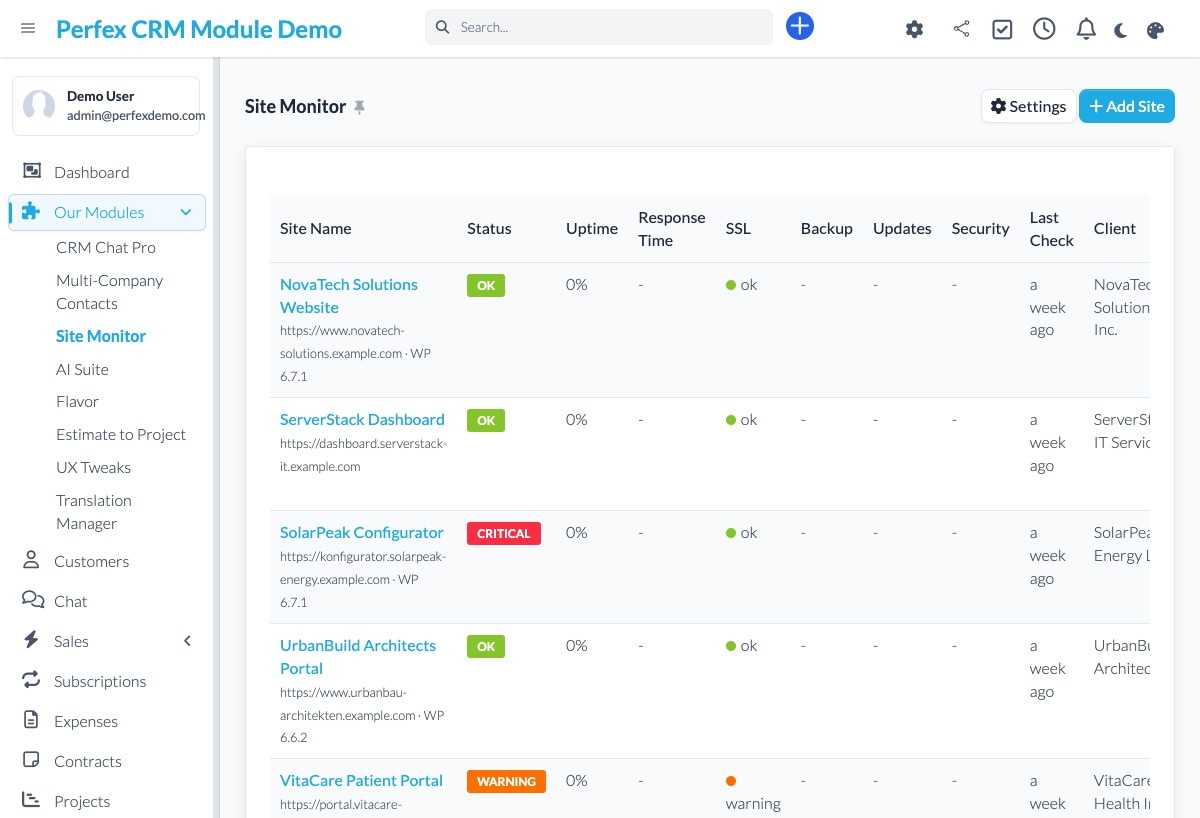
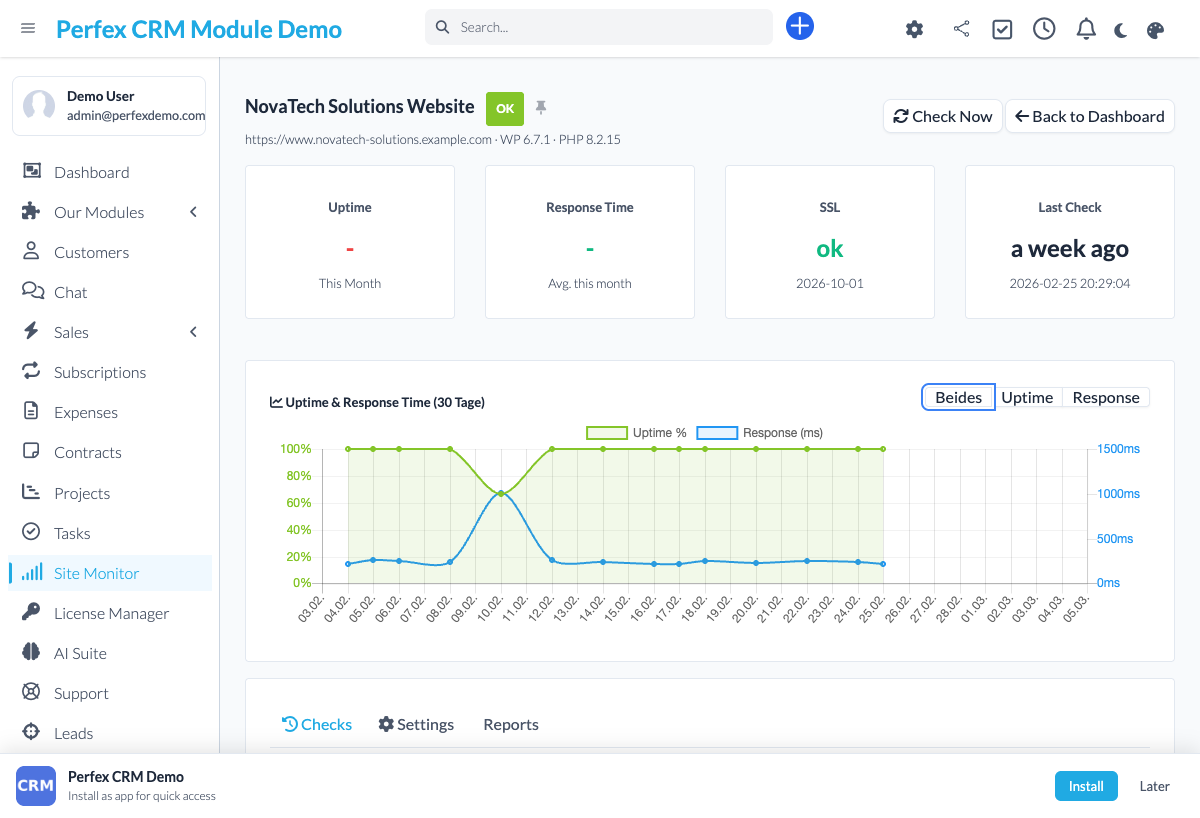
Review History
Click on any monitored site to see its uptime history, response time graph, and incident log.
Download Diagnostics Report
If you need support, go to the module admin page and click the "Download Diagnostics" link. This generates a JSON file with system info, PHP version, installed modules, and recent errors (secrets are automatically redacted). Upload this file when creating a support ticket at custom-perfexcrm.com/support/ for faster troubleshooting.

Tips & Tricks
Get the most out of Site Monitor with these tips.
Monitor your most critical sites first
Start by adding your production websites and client sites. You can always add more later. Prioritize sites where downtime costs you money.
Set up a cron job
For reliable monitoring, make sure your Perfex CRM cron job runs every minute. Site Monitor depends on the cron to execute checks on schedule.
Use the response time graph
A gradual increase in response time often predicts an upcoming outage. Check the graphs weekly to catch performance issues early.
Use diagnostics for faster support
When creating a support ticket, download and attach the diagnostics report from your module settings. It contains system info, PHP version, database details, and recent errors — all with secrets automatically redacted. This helps resolve your issue much faster.
Frequently Asked Questions
Does Site Monitor only work with WordPress?
Yes. Site Monitor is designed specifically for WordPress websites. It checks WordPress-specific endpoints and features to ensure your WordPress sites are running correctly.
How often are sites checked?
You can configure the check interval per site — from every 1 minute to every 60 minutes. More frequent checks use more server resources, so choose based on how critical each site is.
How will I be notified of downtime?
Site Monitor sends email notifications to configured recipients when a WordPress site goes down and again when it comes back up. Notifications include the status code and response time.
Where is the monitoring data stored?
All monitoring data is stored in your Perfex CRM database. No external services are involved. You own all your uptime history data.
Need More Help?
Contact our support team or visit the module page for more information.