Pay by QR Documentation
Video Tutorial
With clickable chapters — click a chapter to jump straight to it.
Getting Started
Follow these steps to get Pay by QR up and running.
Install Pay by QR
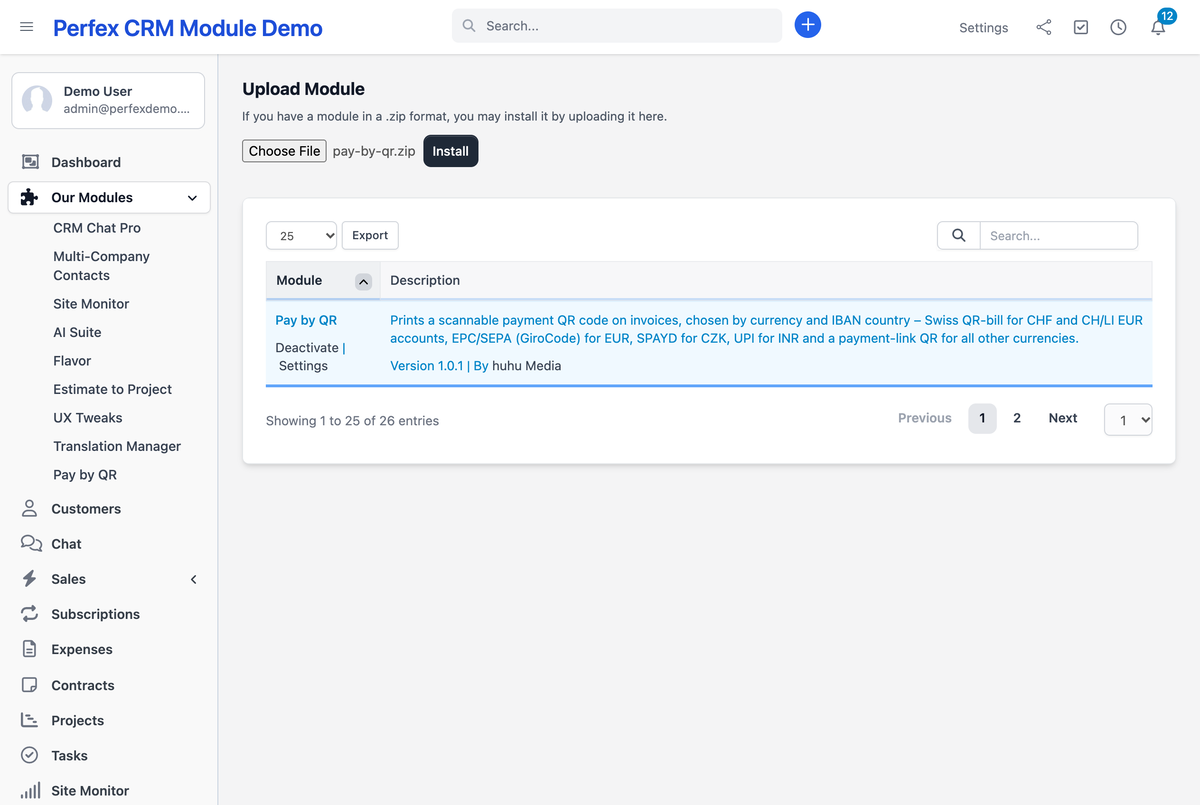
Go to Setup > Modules, choose the zip file under "Upload Module" and click "Install". Activate the module and enter your license key. The settings are under Setup > Pay by QR.
Check your bank payment mode
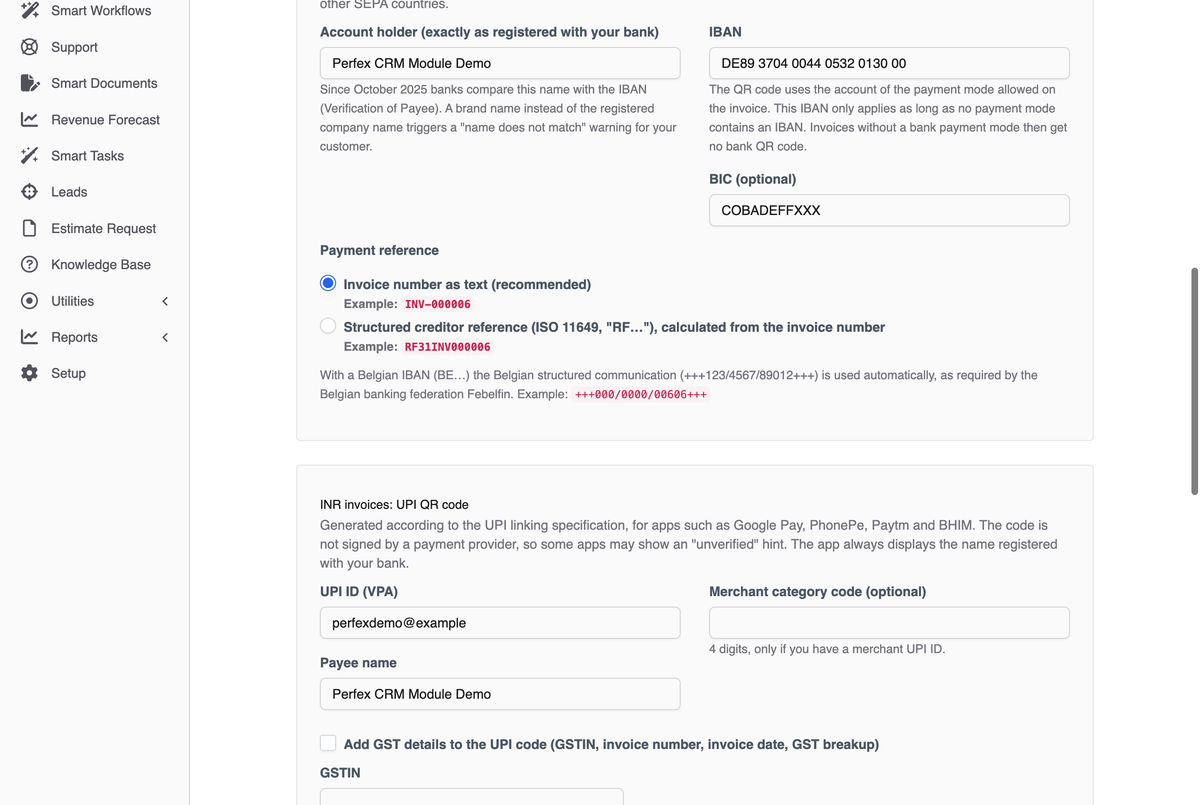
Make sure your "Bank transfer" payment mode under Setup > Finance > Payment Modes has your IBAN (and BIC) in its description. In Pay by QR, click "Take over from payment mode" to copy them, or enter the account by hand. Several accounts in several payment modes are fine: each EUR or CZK invoice uses the account of the mode allowed on it. Swiss and UPI details go into their own sections.
Enter the account holder and your countries
Enter the account holder exactly as registered with your bank. Fill in only the sections you need: Swiss address for CHF, Czech IBAN for CZK, UPI ID and payee name for INR. Sections for currencies you have not set up in Perfex stay collapsed.

Place the block on the PDF
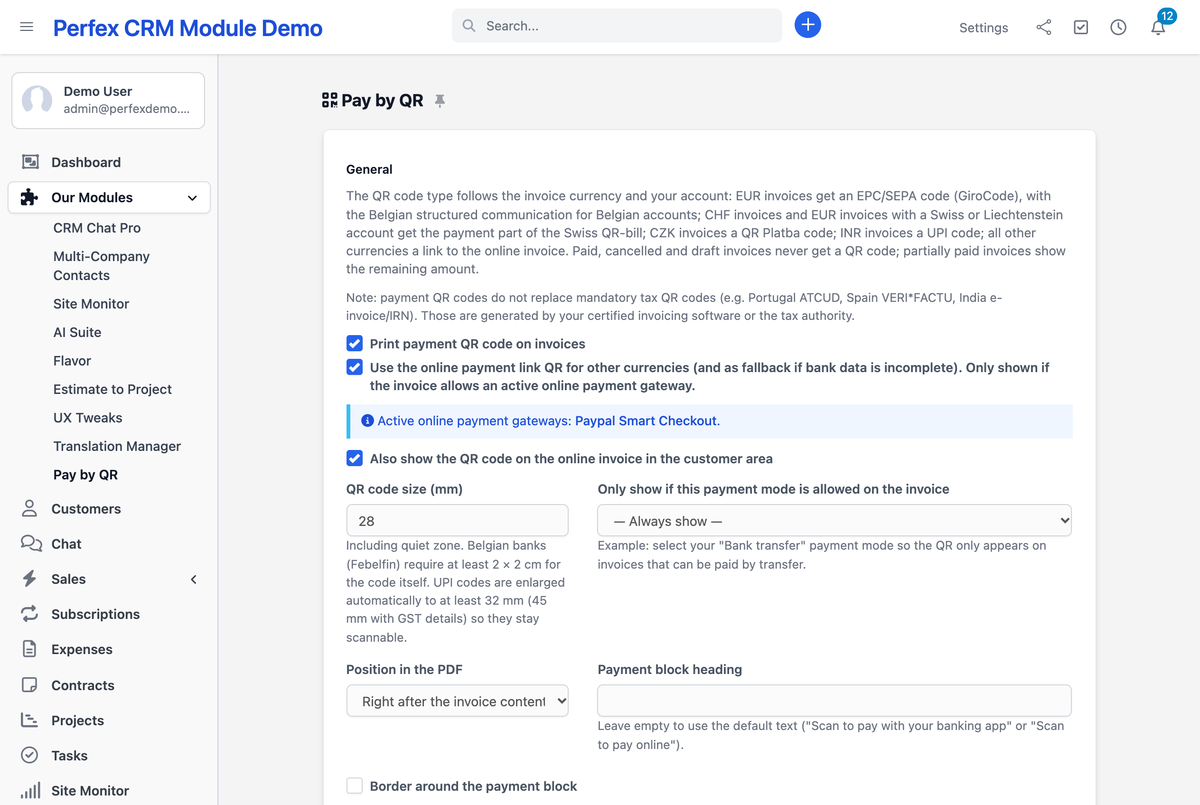
Choose the position (after the invoice content, before the client note or at the bottom of the last page), the size, an optional heading and border, and whether the code also appears on the online invoice in the customer area. The Swiss QR-bill has a fixed layout and ignores these options.

Run a test scan, then go live
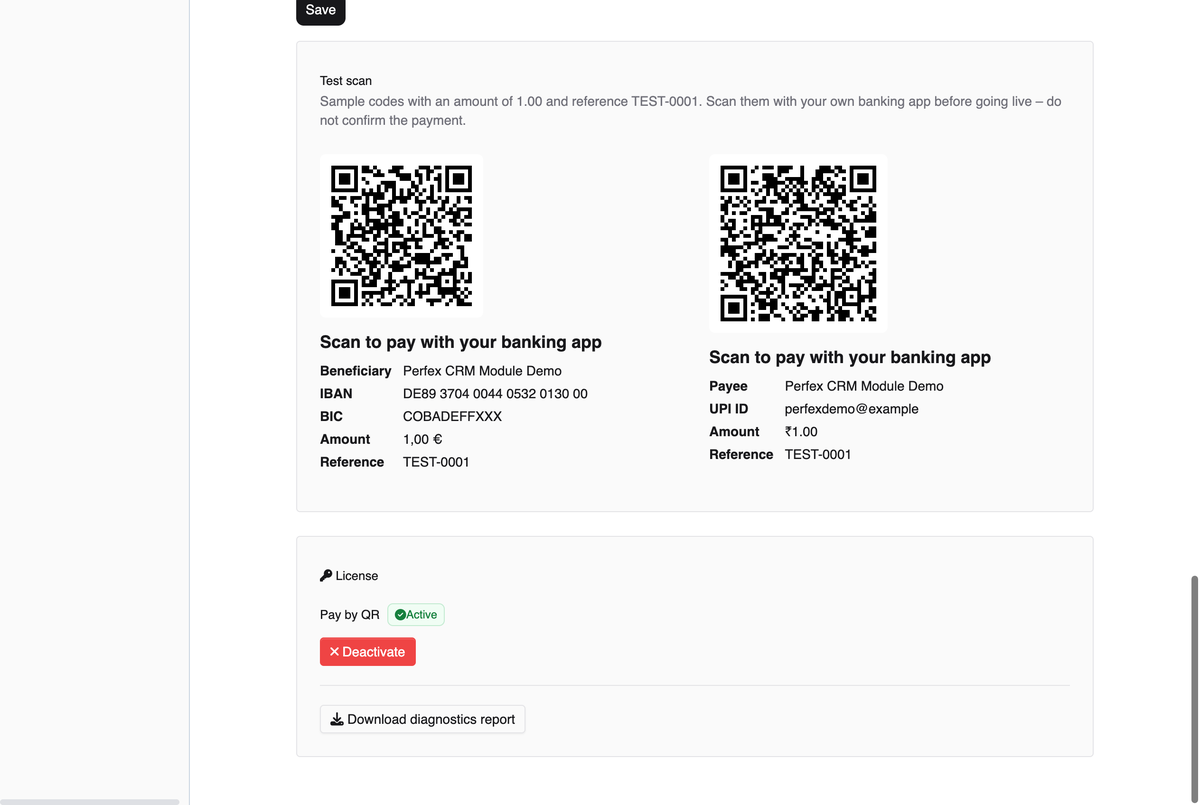
Scan the sample codes (amount 1.00, reference TEST-0001) with your own banking or UPI app and check payee, amount and reference. Do not confirm the payment. Then switch on "Print payment QR code on invoices".
Optional: link QR for other currencies
The link QR option is on by default. It takes effect once an online payment gateway such as PayPal Smart Checkout or Stripe Checkout is active, lists the invoice currency and is allowed on the invoice. The status box shows which gateways are active. There is no test scan for the link QR.
Tips & Tricks
Get the most out of Pay by QR with these tips.
Use the legal account holder name
Enter the name your bank has on file. Since banks started checking payee names in October 2025, a brand name makes your customer's bank warn that the name does not match, even though the IBAN is right.
Limit the QR code to bank transfer
Under "Only show if this payment mode is allowed on the invoice", pick your bank transfer mode. Invoices you want paid by card or cash then get no QR code at all.
Leave room for UPI codes
UPI codes need a larger minimum size to stay scannable, so Pay by QR raises them to at least 32 mm, or 45 mm with GST details, whatever size you set. Keep that space free on your invoice layout.
PayPal link QR: three checks
If the link QR does not show up with PayPal Smart Checkout, check that "Active" is on and "Enable Test Mode" is off, that the invoice currency is listed under "Currencies", and that PayPal is among the invoice's allowed payment modes.
Swiss address as your bank has it
For the Swiss QR-bill, name, street, postal code and town must match the details your bank holds. If the address is incomplete, EUR invoices fall back to a regular EPC code.
Use diagnostics for faster support
When you open a support ticket, download the diagnostics report from the Pay by QR settings and attach it. It lists the bank accounts found in your payment modes and your active online gateways, which usually explains a missing QR code.
Tax QR codes stay with your tax software
If your country requires a tax QR code such as ATCUD, VERI*FACTU, IRN or ZATCA, keep producing it with your certified software. Pay by QR only adds the payment code.
Frequently Asked Questions
Which QR code does my Perfex CRM invoice get?
Pay by QR picks the QR code from the invoice currency and your account. EUR invoices get an EPC/SEPA code (GiroCode), with the Belgian structured communication for Belgian accounts. CHF invoices, and EUR invoices paid to a Swiss or Liechtenstein account, get the Swiss QR-bill payment part. CZK invoices get a QR Platba code, INR invoices a UPI code. Any other currency gets a QR code that opens the online invoice, if the invoice allows an active online payment gateway.
Why does an invoice have no QR code?
Pay by QR leaves the code out whenever the invoice cannot be paid with it. It is usually one of these: the main switch "Print payment QR code on invoices" is still off, which it is right after installation. Or the invoice is paid, cancelled or a draft, or nothing is left to pay. Or you limited the code to one payment mode under "Only show if this payment mode is allowed on the invoice", and this invoice does not allow it. Or your IBANs are kept in Perfex payment modes, but none of the modes you allow on this EUR or CZK invoice holds one, so it gets no SEPA or QR Platba code. Or the bank details for the currency are missing or invalid; when you save, the settings page lists what to fix. Or the currency has no bank QR standard, and the invoice allows no active online payment gateway for a link QR. The status box in the settings shows which gateways are active.
Does the QR code contain the remaining amount after a partial payment?
Yes, Pay by QR always uses the remaining amount, not the original total. If your customer has paid 300 of 1,000, the next scan asks for 700, with the invoice number as the reference.
Is the invoice marked as paid automatically?
Not for bank transfers: Pay by QR does not read your bank account, so you record a transfer or UPI payment in Perfex as usual, with the "Payment" button on the invoice. But the payment arrives with the right amount and the invoice number as the reference, so it is easy to match. If your customer pays through the link QR with an online gateway such as PayPal Smart Checkout, Perfex records that payment itself and updates the invoice status.
Does Pay by QR add a UPI QR code to Perfex CRM invoices in India?
Yes, Pay by QR adds a UPI QR code to every unpaid INR invoice, generated according to the UPI linking specification for apps such as Google Pay, PhonePe, Paytm and BHIM. Your UPI ID, the remaining amount and the invoice number are filled in, and your customer's app shows the payee name registered with your bank. The code is not signed by a payment provider, because only an acquiring bank can sign it, so some apps may show an "unverified" warning. I have also not yet tested it with a UPI app in India; the minimum size of 32 mm (45 mm with GST details) comes from simulated phone scans. You can check it yourself on day one: once your UPI ID and payee name are saved, the Test scan section shows a sample code for ₹1.00 with the reference TEST-0001. Scan it with your own UPI app and do not confirm the payment. If it does not work for you, you get your money back within 14 days, for any reason.
Does Pay by QR replace tax QR codes (ATCUD, VERI*FACTU, IRN, ZATCA)?
No, Pay by QR does not replace tax QR codes. It prints payment QR codes, which tell a banking or UPI app whom to pay and how much. Mandatory tax QR codes such as ATCUD in Portugal, VERI*FACTU in Spain, the e-invoice IRN in India or ZATCA in Saudi Arabia come from your certified invoicing software or the tax authority.
Which banking apps can scan the QR code?
Pay by QR builds each code to the published standard of its country: EPC069-12 for SEPA, the SIX implementation guidelines v2.4 for the Swiss QR-bill, the Czech Banking Association standard for QR Platba and the UPI linking specification for India. I scanned one of my own invoices with a German banking app (comdirect), and amount and reference were correct. The Swiss and Czech codes were checked with independent validators, the EPC data with independent tools. Not every app has been tried, so the settings page has a test scan for your own app, and the live demo has EUR invoices you can scan.
How do I get the link QR with a Perfex payment gateway such as PayPal Smart Checkout?
Pay by QR shows the link QR when the invoice allows an active online payment gateway. For PayPal Smart Checkout, go to Setup > Settings > Finance > Payment Gateways and open the "Paypal Smart Checkout" tab. Set "Active" to Yes and enter the Client ID and Secret of your PayPal app. Set "Enable Test Mode" to No, otherwise payments go to the PayPal sandbox. Add your invoice currency to "Currencies (coma separated)", which lists USD,CAD,EUR by default; Perfex only offers the gateway on invoices in those currencies. "Selected by default on invoice" only applies to new invoices, so add PayPal to existing ones under "Allowed payment modes for this invoice". The link QR option in Pay by QR is on by default. The same steps work with other Perfex gateways such as Stripe Checkout.
Why does my customer's bank say the name does not match?
Pay by QR puts the account holder name you enter into the EPC code, and since October 2025 banks in the euro area compare that name with the IBAN (Verification of Payee). Enter it exactly as your bank has it, usually the legal company name. A brand name triggers the warning even when the IBAN is right.
Do I have to change my invoice template?
No, Pay by QR does not touch your invoice template or any Perfex core file. It adds the payment block through standard Perfex hooks: after the invoice content, before the client note or at the bottom of the last page. If building the QR code fails, the invoice PDF is still created, just without the block.
Can I try Pay by QR before buying?
Yes, you can try Pay by QR in the live demo: under Sales > Invoices, open an unpaid EUR invoice and its PDF, then scan the code on your screen with your phone's banking app. The payee is a public sample IBAN, so your app only shows a pre-filled transfer; close it without sending. If you invoice in rupees, use the Test scan in the settings after installing instead. After buying, you have 14 days to get your money back, for any reason.
Can Pay by QR add GST details for a dynamic UPI QR code?
Yes, Pay by QR can add GST details to the UPI code: GSTIN, invoice number, invoice date and the CGST/SGST/IGST/cess breakup from the invoice taxes. With these details the code holds more data, so it is printed at 45 mm. Whether that meets the dynamic QR requirement for your business is a question for your tax adviser. The module does not create an e-invoice or IRN QR code.
Can I use one license on several Perfex installations?
No, a Pay by QR license covers one Perfex CRM installation and is bound to one domain. Each further installation, for example at another client, needs its own license.
Which Perfex CRM versions are supported?
Pay by QR is built for Perfex CRM 3.x and checked on Perfex CRM 3.4.0, which itself requires PHP 8.1 or higher.
Need More Help?
Contact our support team or visit the module page for more information.