AI Suite — Insights Documentation
Video Tutorial
With clickable chapters — click a chapter to jump straight to it.
Getting Started
Follow these steps to get AI Suite — Insights up and running.
Install Prerequisites
Make sure AI Suite Core is installed and configured with your AI provider. Then upload and activate the AI Insights add-on via Setup > Modules.
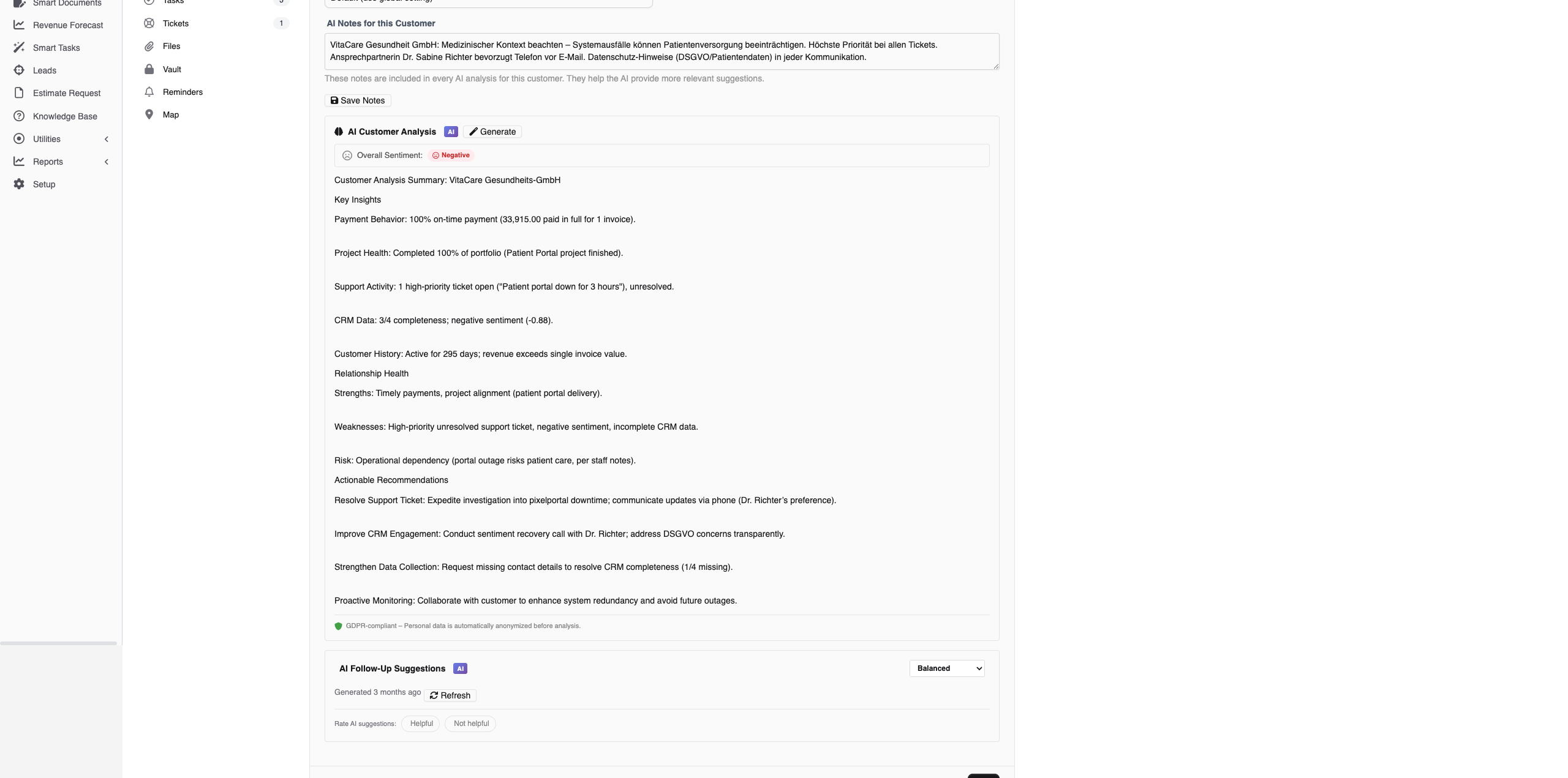
Try Customer 360
Open any client profile and click the AI tab. Click "Generate Analysis" to see a real-time streaming Customer 360 report with payment behavior, relationship health, and recommendations.
Score Your Leads
Open a lead and view the AI tab for instant scoring. Use "Batch Score" to score all unscored leads at once. Colored badges (hot/warm/cold) appear on your kanban board.

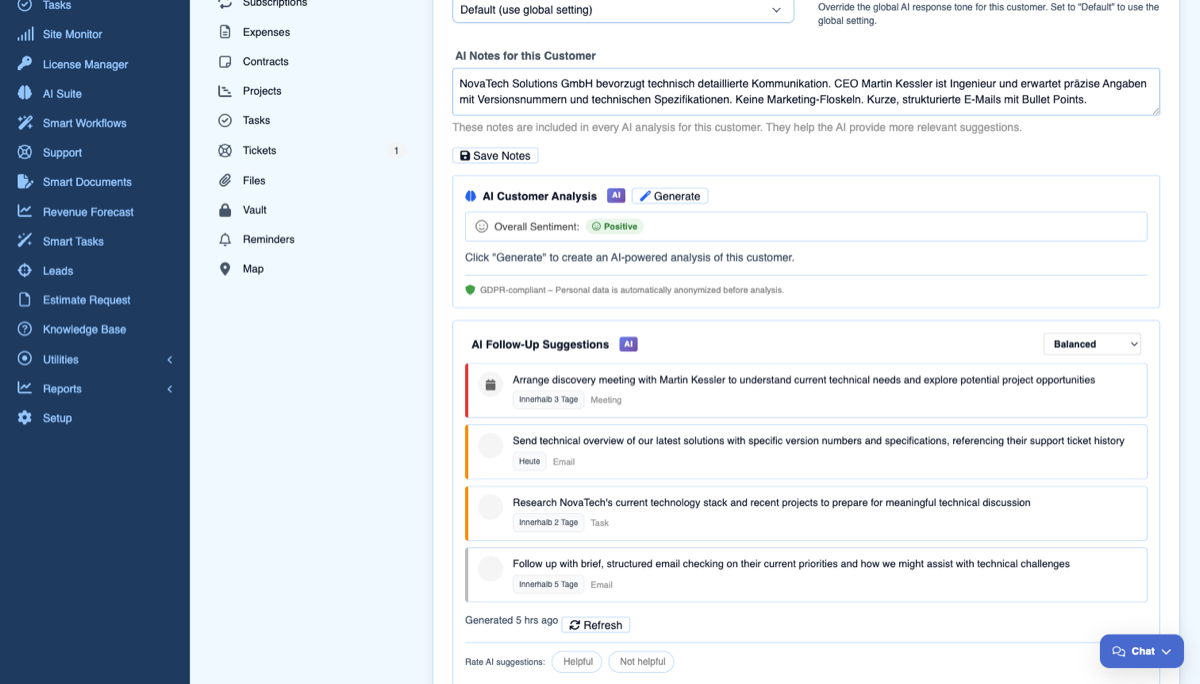
Get Follow-Up Suggestions
On any lead or client, click "Follow-Up Suggestions" to get AI-generated action cards with priority-ranked calls, emails, meetings, and tasks.
Download Diagnostics Report
If you need support, go to the module admin page and click the "Download Diagnostics" link. This generates a JSON file with system info, PHP version, installed modules, and recent errors (secrets are automatically redacted). Upload this file when creating a support ticket at custom-perfexcrm.com/support/ for faster troubleshooting.

Tips & Tricks
Get the most out of AI Suite — Insights with these tips.
Set client-specific tones
Different clients need different communication styles. Set a formal tone for corporate clients and an informal tone for startups. The AI adapts all its responses accordingly.
Batch-score leads weekly
Run batch scoring regularly to keep all lead scores up to date. New interactions and changes in lead status will be reflected in updated scores.
Use follow-ups for team alignment
Follow-up suggestions help ensure no client interaction falls through the cracks. Review suggested actions weekly and assign them to team members.
Use diagnostics for faster support
When creating a support ticket, download and attach the diagnostics report from your module settings. It contains system info, PHP version, database details, and recent errors — all with secrets automatically redacted. This helps resolve your issue much faster.
Rate the AI to sharpen it
Use the thumbs up/down on each AI output, and add a quick note when something is off. It is the fastest way to see, over time, which analyses your team actually trusts.
Frequently Asked Questions
Does AI Insights require AI Suite Core?
Yes. AI Insights is an add-on module that requires AI Suite Core to be installed and configured. AI Suite Core handles the AI provider connection, and Insights uses it for all analysis features.
What is Customer 360?
Customer 360 generates a comprehensive AI profile for each client by analyzing their invoices, projects, support tickets, estimates, and proposals. It provides insights on payment behavior, relationship health, revenue trends, risks, and actionable recommendations — all streamed in real time.
How does lead scoring work?
The AI analyzes each lead based on source, status, value, communication history, and engagement patterns. It assigns a score from 0-100 with a hot (70+), warm (40-69), or cold (0-39) label. Scores appear as colored badges on your lead kanban board.
What are follow-up suggestions?
The AI analyzes client or lead context and generates prioritized action cards — recommended calls, emails, meetings, or tasks. Each card includes a priority level and brief description of why the follow-up is recommended.
Can I customize the AI tone per client?
Yes. On each client AI tab, you can set the communication tone (formal with "we", formal with "I", informal "du", or neutral) and add custom instructions. The AI adapts its responses accordingly.
Does sentiment analysis work automatically?
Yes. Sentiment analysis runs automatically on new tickets, on ticket replies and on notes, and shows the result as a colored badge (positive, neutral, or negative) on the ticket. You can also trigger it manually on any ticket that has not been analyzed yet.
Can I steer what the follow-up suggestions focus on?
Yes. The follow-up widget has a focus switch — Balanced, Sales, Support or Detail. Set it to Sales and the AI leans toward closing and next sales steps; set it to Support and it leans toward service and issue resolution. You choose per situation.
Need More Help?
Contact our support team or visit the module page for more information.