AI Suite — Smart Documents Documentation
Video Tutorial
With clickable chapters — click a chapter to jump straight to it.
Getting Started
Follow these steps to get AI Suite — Smart Documents up and running.
Install Prerequisites
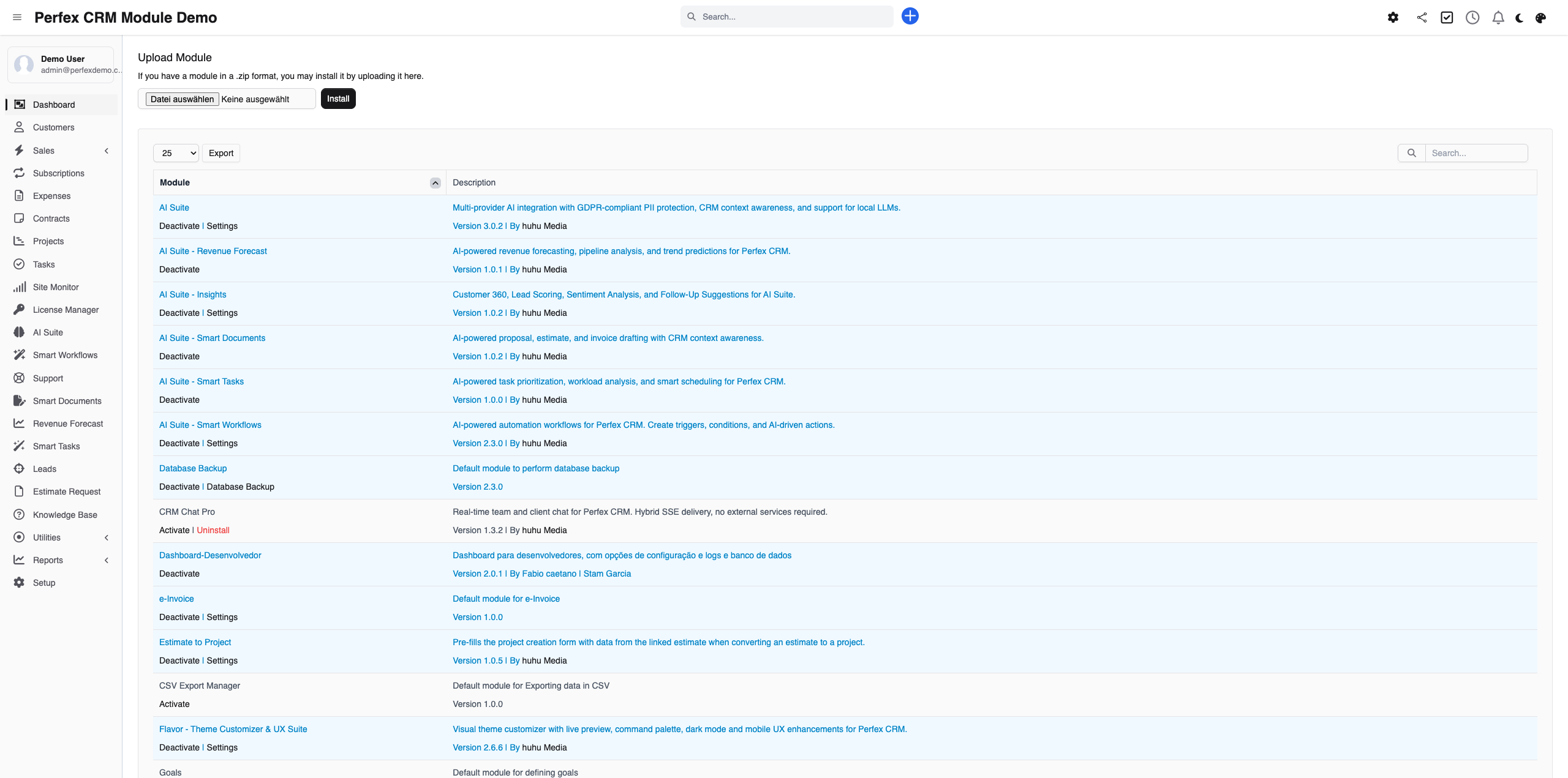
Ensure AI Suite Core is installed and configured. Then upload and activate Smart Documents via Setup > Modules.
Generate a Draft
When creating a new proposal or estimate, click "AI Draft" to generate content. The AI uses client history and lead context to produce a personalized document.

Analyze Existing Documents
Open any proposal or estimate and click the "AI Analysis" tab. The AI evaluates the document and provides feedback on strengths, weaknesses, and pricing.
Track AI Usage
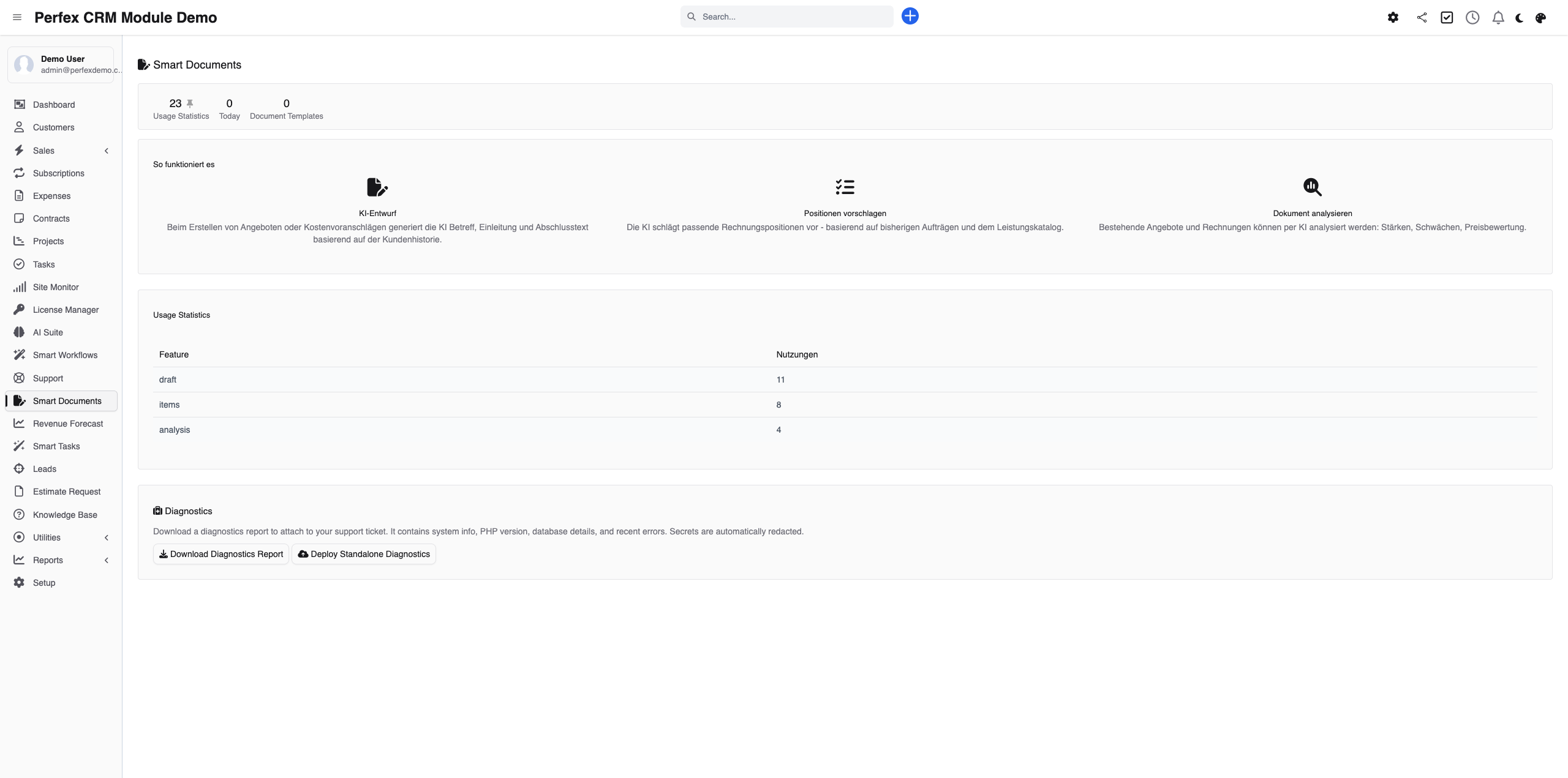
Open Smart Documents from the sidebar to see how often drafts, line-item suggestions and analyses are used — a simple way to measure the module's value to your team.
Download Diagnostics Report
If you need support, go to the module admin page and click the "Download Diagnostics" link. This generates a JSON file with system info, PHP version, installed modules, and recent errors (secrets are automatically redacted). Upload this file when creating a support ticket at custom-perfexcrm.com/support/ for faster troubleshooting.

Tips & Tricks
Get the most out of AI Suite — Smart Documents with these tips.
Draft in your client's language
Generating straight in the client's own language takes seconds and reads far more personally than translating afterwards — pick the target language before you draft.
Review AI pricing suggestions
Always review AI-suggested line items and pricing. The AI bases suggestions on past data, but you know your current market rates best.
Analyze before sending
Run document analysis on important proposals before sending them. The AI can catch weak spots in your argument or suggest stronger positioning.
Use diagnostics for faster support
When creating a support ticket, download and attach the diagnostics report from your module settings. It contains system info, PHP version, database details, and recent errors — all with secrets automatically redacted. This helps resolve your issue much faster.
Frequently Asked Questions
Does Smart Documents require AI Suite Core?
Yes. Smart Documents is an add-on that uses AI Suite Core for AI provider access and CRM context building.
What types of documents can be generated?
Smart Documents drafts proposals and estimates. Each is built from CRM context (client history, lead data, past documents) to create relevant, personalized content.
How does document analysis work?
Open any proposal or estimate and click the AI Analysis tab. The AI reviews the document and provides a summary, highlights strengths and weaknesses, assesses pricing, and suggests improvements.
Does the AI match my client and their language?
Yes. Every draft is generated from the specific client's history and the linked lead, so subject line, intro and closing fit who you're writing to. You can also generate in multiple languages — the AI adapts content, formatting, and terminology to the target language.
Will AI overwrite my existing documents?
No. AI-generated drafts are created as new documents or shown in a preview. You always review and edit before saving. The AI never modifies existing proposals or estimates without your approval.
Need More Help?
Contact our support team or visit the module page for more information.