Smart Workflows Documentation
Video Tutorial
With clickable chapters — click a chapter to jump straight to it.
Getting Started
Follow these steps to get Smart Workflows up and running.
Install Prerequisites
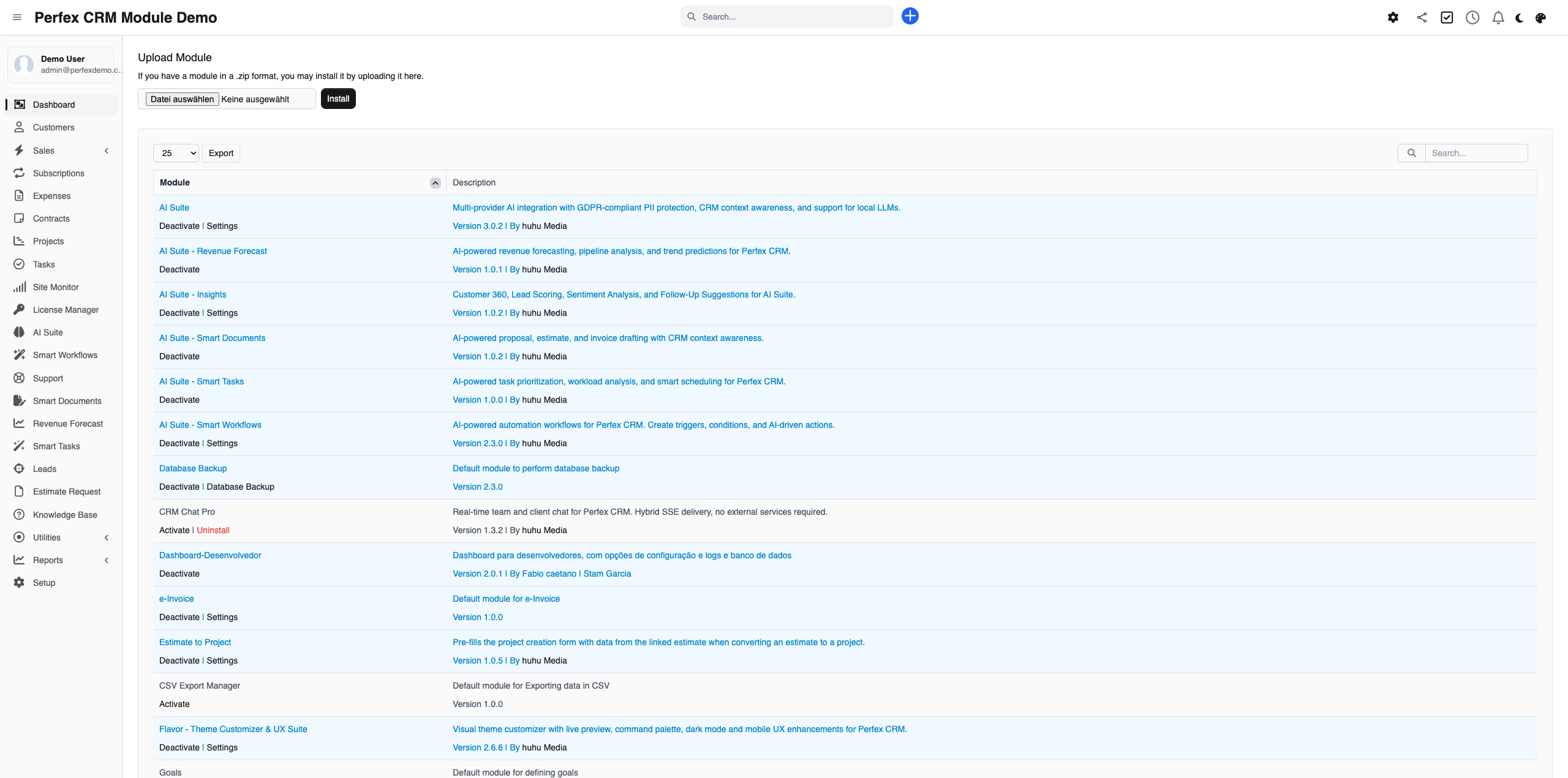
Ensure AI Suite Core 3.0+ is installed and configured with an AI provider. Then upload and activate Smart Workflows via Setup > Modules.
Browse Templates
Open Smart Workflows from the sidebar. The Templates tab shows 11 ready-made workflows across 5 categories. Click "Use Now" to deploy instantly, or "Customize first..." to adjust via AI Interview.

Use the AI Assistant
Switch to the AI Assistant tab and describe what you want to automate. The AI will guide you through trigger selection, conditions, and actions step by step.

Configure Privacy Shield
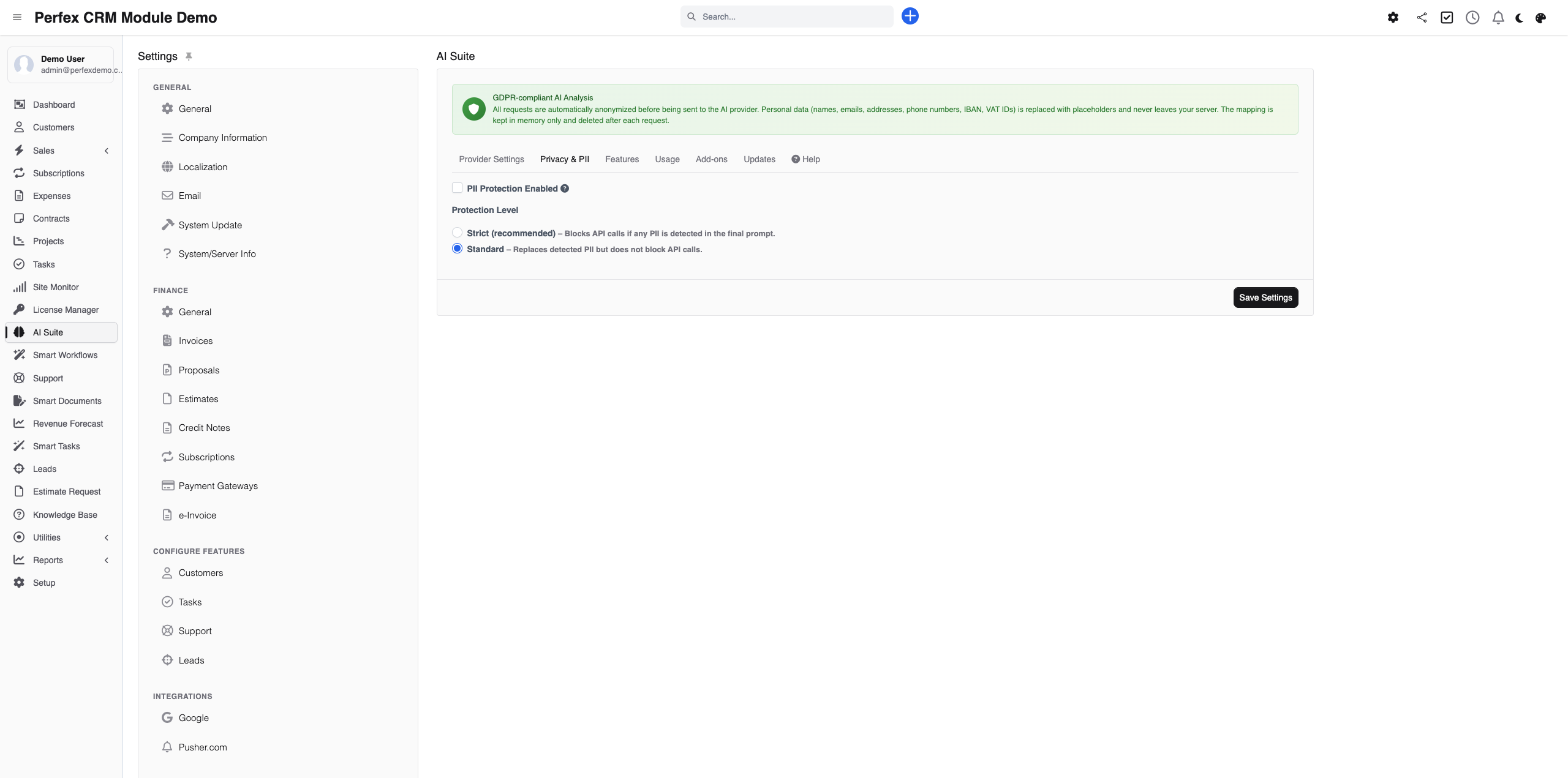
Click the Privacy Shield badge to choose your data protection mode. Strict mode ensures no personal data is sent to the AI provider — recommended for GDPR compliance.
Download Diagnostics Report
If you need support, go to the module admin page and click the "Download Diagnostics" link. This generates a JSON file with system info, PHP version, installed modules, and recent errors (secrets are automatically redacted). Upload this file when creating a support ticket at custom-perfexcrm.com/support/ for faster troubleshooting.

Tips & Tricks
Get the most out of Smart Workflows with these tips.
Start with templates
The built-in templates cover the most common automation scenarios. Deploy one as-is, then customize it once you see how it works in practice.
Use Strict mode for client data
When workflows process client emails or personal data, enable Strict privacy mode. The AI works with anonymized context and still produces excellent results.
Chain actions for complex flows
Multi-action chains are powerful. Combine AI analysis + notification + task creation for comprehensive automation that handles the full process.
Test before going live
Always use simulation mode for new workflows. It shows exactly what will happen without actually sending emails or creating tasks.
Use diagnostics for faster support
When creating a support ticket, download and attach the diagnostics report from your module settings. It contains system info, PHP version, database details, and recent errors — all with secrets automatically redacted. This helps resolve your issue much faster.
Configure project permissions upfront
When the AI Task Assistant creates a project, use the Project Settings section to set tab visibility and permissions right away. This saves time compared to adjusting settings after project creation.
Frequently Asked Questions
Does Smart Workflows require AI Suite Core?
Yes. Smart Workflows is an add-on that uses AI Suite Core for AI-generated emails, sentiment analysis, and the Interview engine. The template system and workflow execution work through AI Suite's infrastructure.
Can I replace n8n or Zapier with this?
For CRM-related automation, yes. Smart Workflows handles lead nurturing, ticket escalation, payment reminders, and task notifications natively — without external tools, API keys, or monthly fees.
What is the Privacy Shield?
The Privacy Shield controls what data is sent to AI providers. In Strict mode, no personal data leaves your CRM — only anonymized context. Pseudonymized mode replaces names with placeholders. Open mode sends all data as-is.
How does the AI Interview work?
Describe your automation goal in natural language (e.g., "notify my team when a high-priority ticket comes in"). The AI asks clarifying questions about triggers, conditions, and actions, then generates a complete workflow configuration.
Can workflows have multiple actions?
Yes. Multi-action chains let you execute several actions from one trigger. For example: when a ticket is created → analyze sentiment → notify team lead → create follow-up task.
Is there a way to test workflows safely?
Yes. The simulation mode lets you test any workflow without actually executing actions. You see exactly what would happen — which triggers fire, which conditions match, and which actions would run.
What are Project Settings?
When the AI Task Assistant creates a project, you can configure tab visibility, 18 granular permissions (view tasks, create tasks, edit tasks, comments, attachments, and more), and contact notifications directly in the creation modal. Settings are saved per project in the database.
Need More Help?
Contact our support team or visit the module page for more information.