Estimate to Project Documentation
Video Tutorial
With clickable chapters — click a chapter to jump straight to it.
Getting Started
Follow these steps to get Estimate to Project up and running.
Install the Module
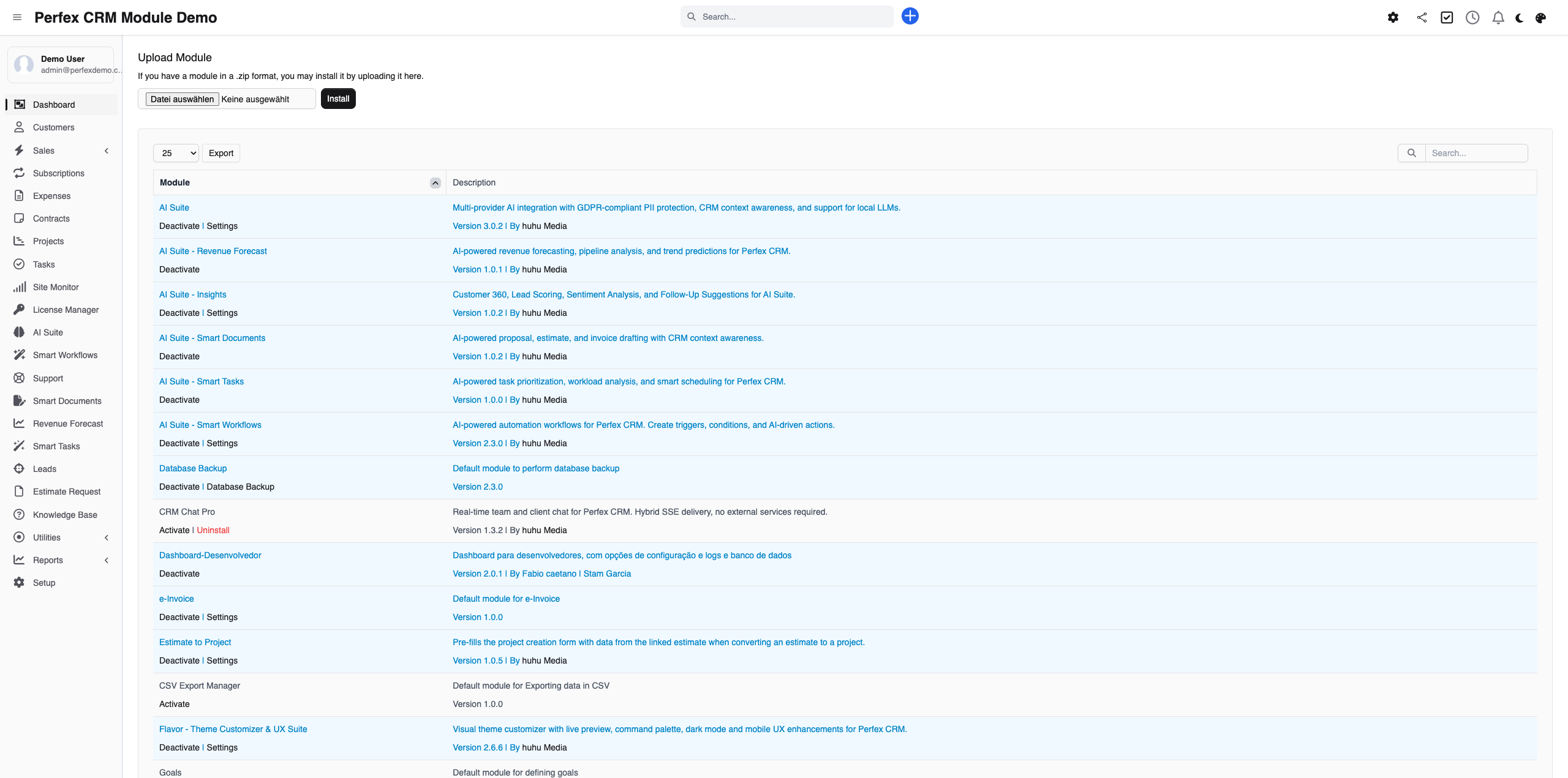
Upload via Setup > Modules > Install New Module and activate Estimate to Project.
Create or Open an Estimate
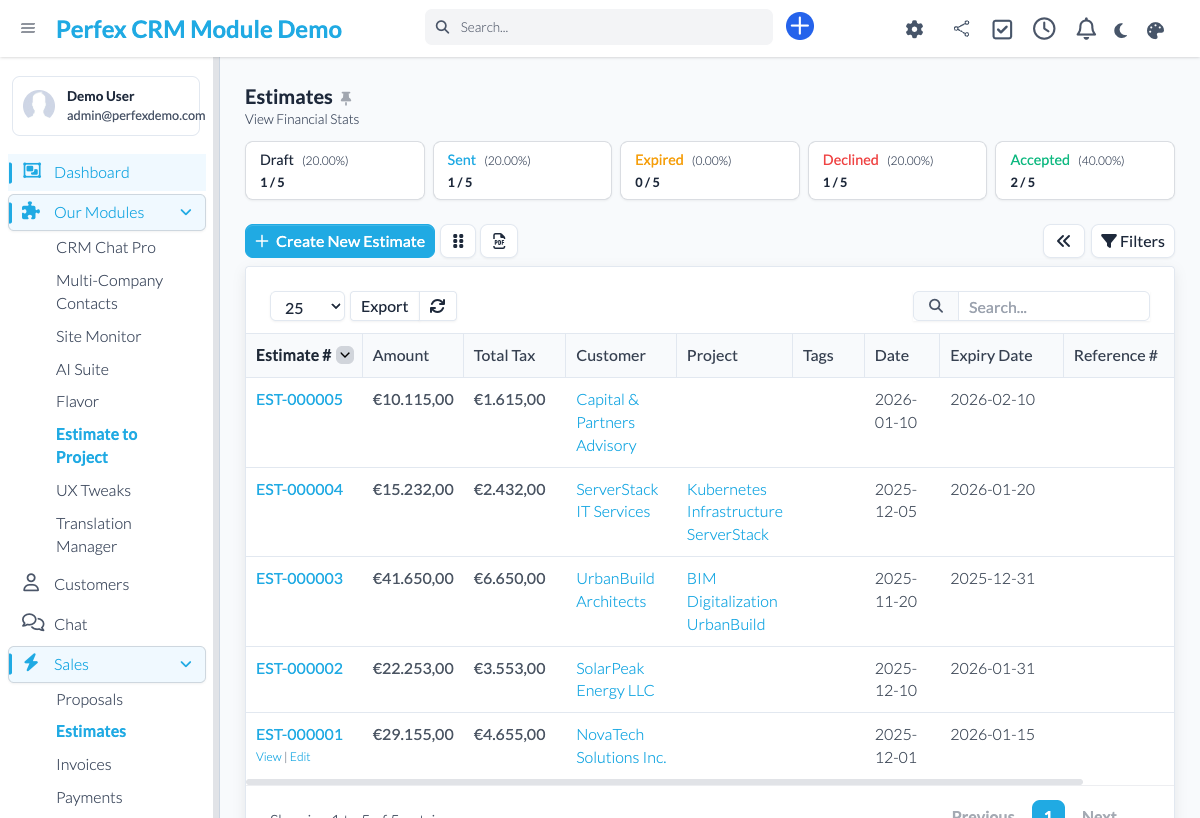
Navigate to Sales > Estimates. Open an accepted estimate or create a new one with line items that represent your scope.
Convert to Project
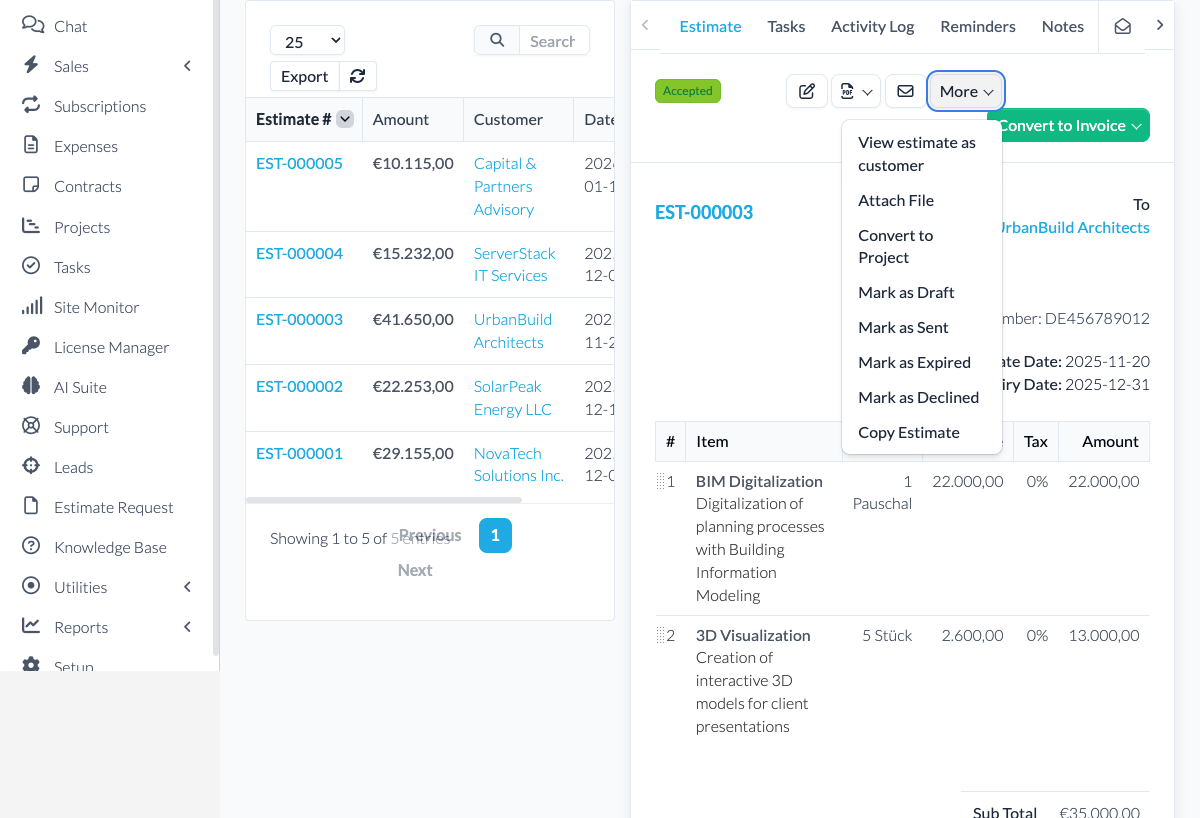
On an accepted estimate, click "Convert to Project". The new-project form opens with name, deadline, budget, hours, tags and the item list already filled in — review, adjust anything, and save.
Download Diagnostics Report
If you need support, go to the module admin page and click the "Download Diagnostics" link. This generates a JSON file with system info, PHP version, installed modules, and recent errors (secrets are automatically redacted). Upload this file when creating a support ticket at custom-perfexcrm.com/support/ for faster troubleshooting.

Tips & Tricks
Get the most out of Estimate to Project with these tips.
Set the estimate expiry date deliberately
On conversion, the estimate's expiry date becomes the project deadline. Set it with the project timeline in mind and the deadline is right the moment you save.
Add detailed line items
The more detail in your estimate line items, the better your project brief: the items are carried into the project description, so clear item text means a clear scope from day one.
Use diagnostics for faster support
When creating a support ticket, download and attach the diagnostics report from your module settings. It contains system info, PHP version, database details, and recent errors — all with secrets automatically redacted. This helps resolve your issue much faster.
Frequently Asked Questions
What does the module fill in?
When you convert an accepted estimate, the new-project form opens pre-filled: project name, deadline (from the estimate's expiry date), fixed cost (the estimate total), estimated hours (the sum of the item quantities) and tags. The estimate's line items are added as a formatted list in the project description, and the estimate's sales agent is set as a project member. You review everything and save.
Does it create tasks or milestones automatically?
No — and we want to be clear about that. The module prefills the standard Perfex project form and lists the estimate items in the project description; it does not create separate task records or milestones. You add tasks and milestones in Perfex as usual, with the full scope already documented in the project for you.
Does it work with estimate templates?
Yes. Any accepted estimate — created from scratch or from a template — can be converted. The prefill works exactly the same way.
What happens to the original estimate?
The estimate stays unchanged and linked to the new project, so you can always reference it back from the project view.
Need More Help?
Contact our support team or visit the module page for more information.